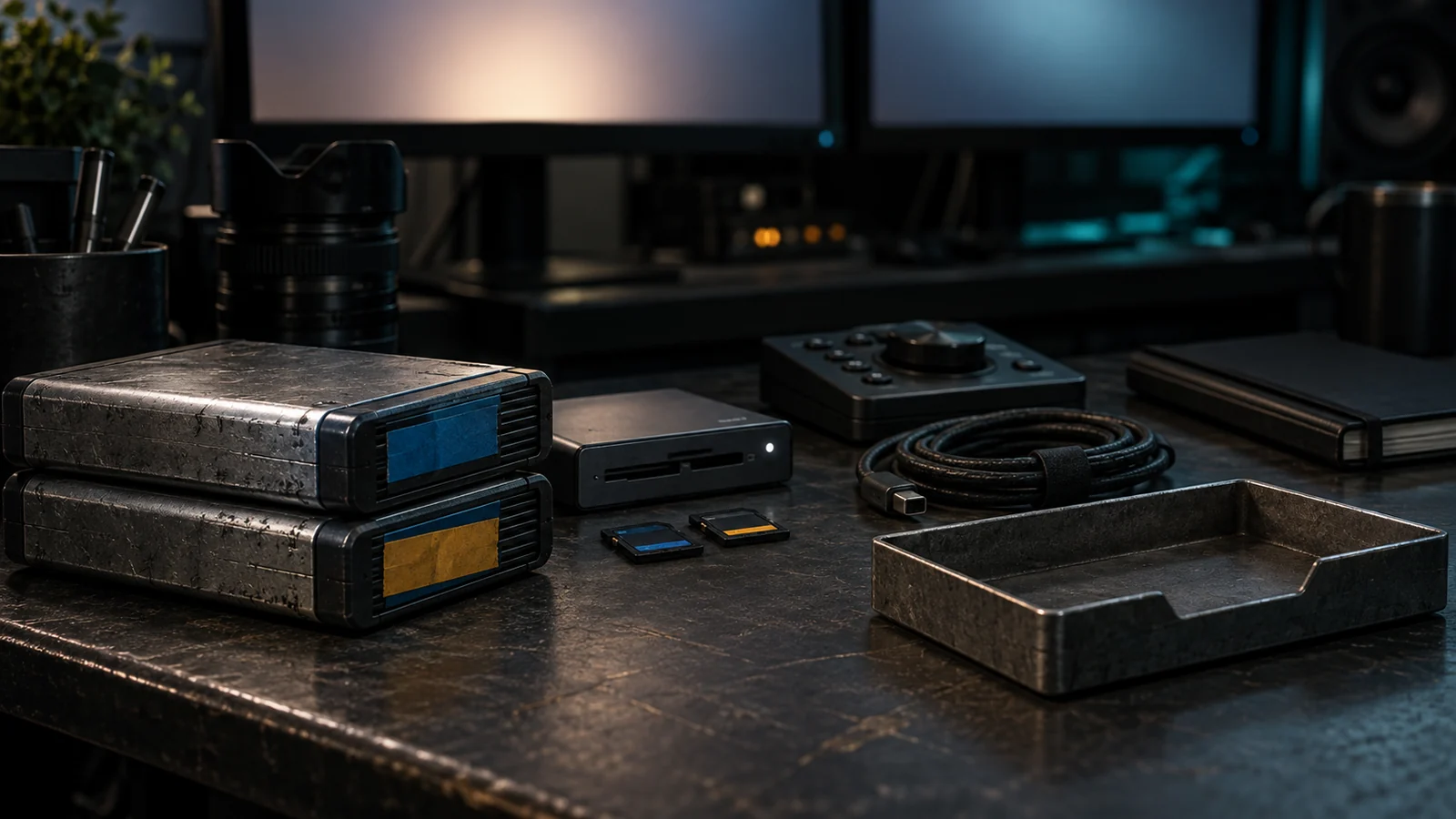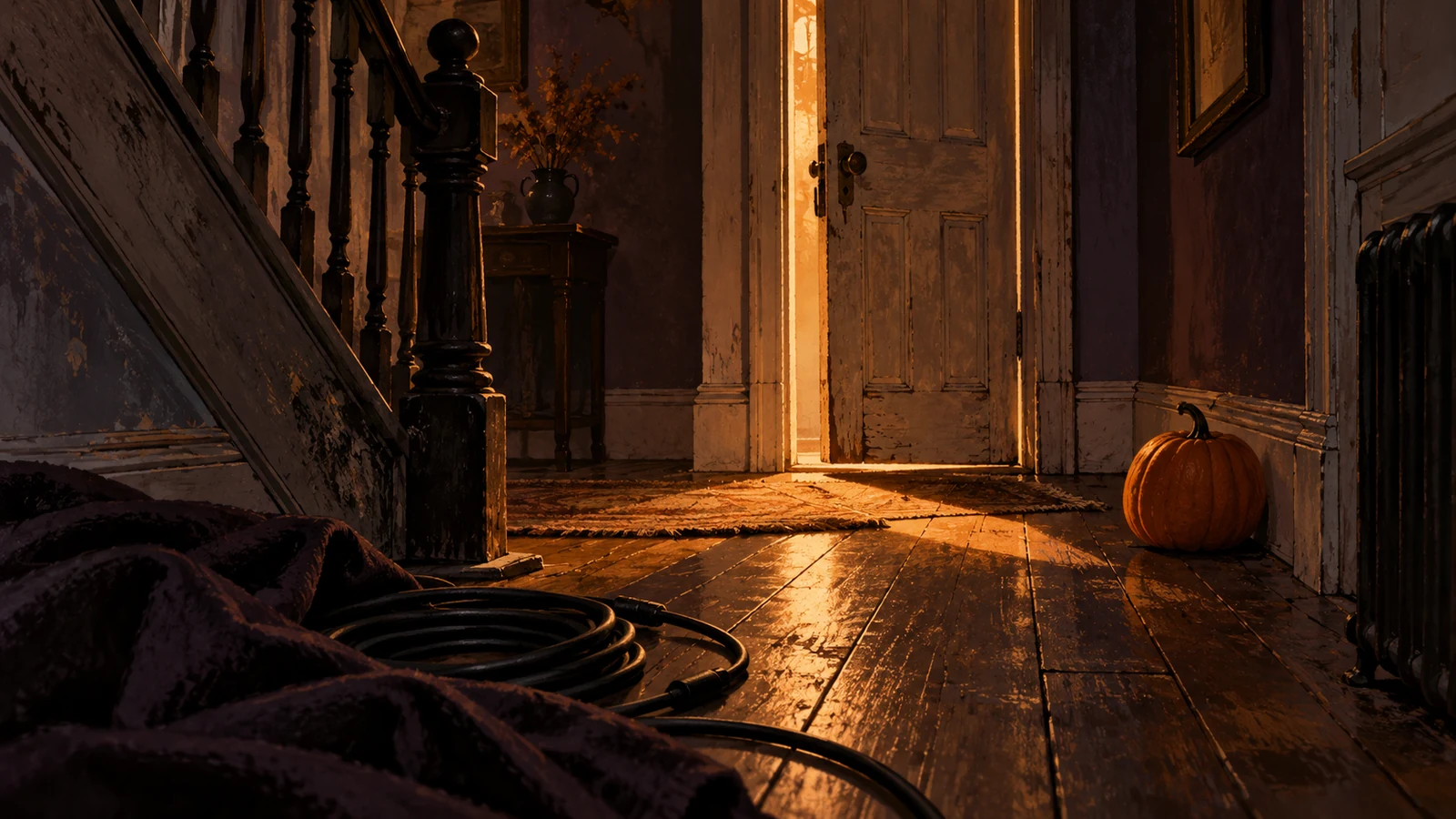
Halloween footage often starts with a bright pumpkin, a black costume and a room that is darker than the camera would prefer. Pulling down the entire image can make the scene look moodier on an editing monitor while erasing the subject on a phone. The useful objective is selective darkness: preserve the detail that tells the story, then let less important areas fall away.
Work on a short representative sequence before treating the whole project. Choose one wide view, one costume detail and one bright prop closeup. If those three shots cannot be matched, adding a preset to thirty clips simply spreads the problem. The workflow below is a practical grading exercise, not a promise that missing detail can be recovered from every recording.
Name the detail the audience must see
Write one visible requirement for each shot. A costume tutorial needs the stitching and material boundary; a haunted room tour needs the route through the room; a pumpkin reveal needs the carved shape. Protect those features when adjusting exposure. Darkness that hides them removes the value of the video.
Find a reference frame in which the important feature is clear. Compare the other angles to it before adding a stylized look. An orange prop reflected on a wall can produce a deliberate warm atmosphere, but it can also make every neutral surface look muddy. Decide which color is motivated by the actual light and which comes from the camera.
Correct the baseline before making it spooky
Review source exposure and white balance shot by shot. If a face, hand or product is part of the scene, keep its informational role in mind even when the surroundings become cool or warm. Match obvious differences between takes first. A scene that alternates between orange, green and neutral shadows distracts from the reveal.
Adobe describes color wheels as separate controls for shadows, midtones and highlights. Use those regions deliberately rather than applying the same heavy change to the whole frame. Make small adjustments, compare against the untreated source, and save a version before committing the treatment to adjacent shots.
Read the scopes alongside the image
Adobe's scope documentation distinguishes waveform, histogram, RGB parade and vectorscope analyses. Use the waveform to inspect brightness distribution and the RGB parade to investigate an unexpected color imbalance. A scope is a diagnostic aid; it cannot decide whether the costume remains understandable to your audience.
| Scene symptom | Inspect first | Practical response |
|---|---|---|
| Black fabric becomes a featureless block | Shadow detail in the source | Raise local visibility or use a better take |
| Pumpkin glows as a solid white patch | Highlight information | Reduce emphasis if detail survives; replace if it does not |
| Adjacent shots have different orange casts | Neutral reference and RGB balance | Match baseline color before styling |
| Props disappear after the look | Midtone separation | Restore subject contrast rather than brightening every corner |
Do not chase a universal Halloween waveform shape. Different footage, color management and delivery requirements change the appropriate interpretation. Check the current application documentation for your version, especially when working between shipping and beta color tools.
Keep the black costume separate from the background
When a dark sleeve merges into a dark wall, examine the original recording. A brighter rim or different angle may provide useful separation that a broad exposure lift cannot create. Try the alternate take before spending time isolating a nearly invisible edge. Record that choice in the project so later revisions use the same source.
If the source has usable tonal differences, preserve them with restrained contrast adjustments. Avoid excessive sharpening or grain as a rescue method. Those additions can make an image appear busy without revealing the garment. View the frame at its actual display size rather than judging only a zoomed preview.
Test a real delivery copy early
Export the three-shot test and watch it on the phone or screen used for approval. Check it in normal indoor lighting with automatic brightness behaving as a typical viewer would use it. This is a practical visibility check, not a calibrated color reference. Keep the important features visible without requiring a dark room or maximum screen brightness.
A compressed upload may reveal banding, blocky shadows or color shifts that are less obvious in the editing preview. If you see a problem, compare the source, local export and platform copy to locate the stage that introduced it. Change one parameter, repeat the small test and keep the successful settings with the project.
Apply the look by scene and review every cut
Group shots by actual lighting setup, not merely by subject. Copying the haunted-room treatment onto a daylight pumpkin closeup can create more corrections than it saves. Match within each setup, then review the cut between setups at normal speed. The Halloween mood should feel consistent even when the brightness changes.
Before delivery, compare the final sequence against the reference requirements you wrote first. Verify costume texture, carved detail and room orientation. Save a clean master and a record of the treatment. If the best available take cannot show an essential feature, reshoot or explain that limitation instead of grading it into an apparent improvement.
Related reading
Sources and editorial scope
Sources reviewed 3 October 2026. This original Angry Media exercise focuses on grade dark halloween footage without losing the details. The examples illustrate production decisions, rather than measured results.