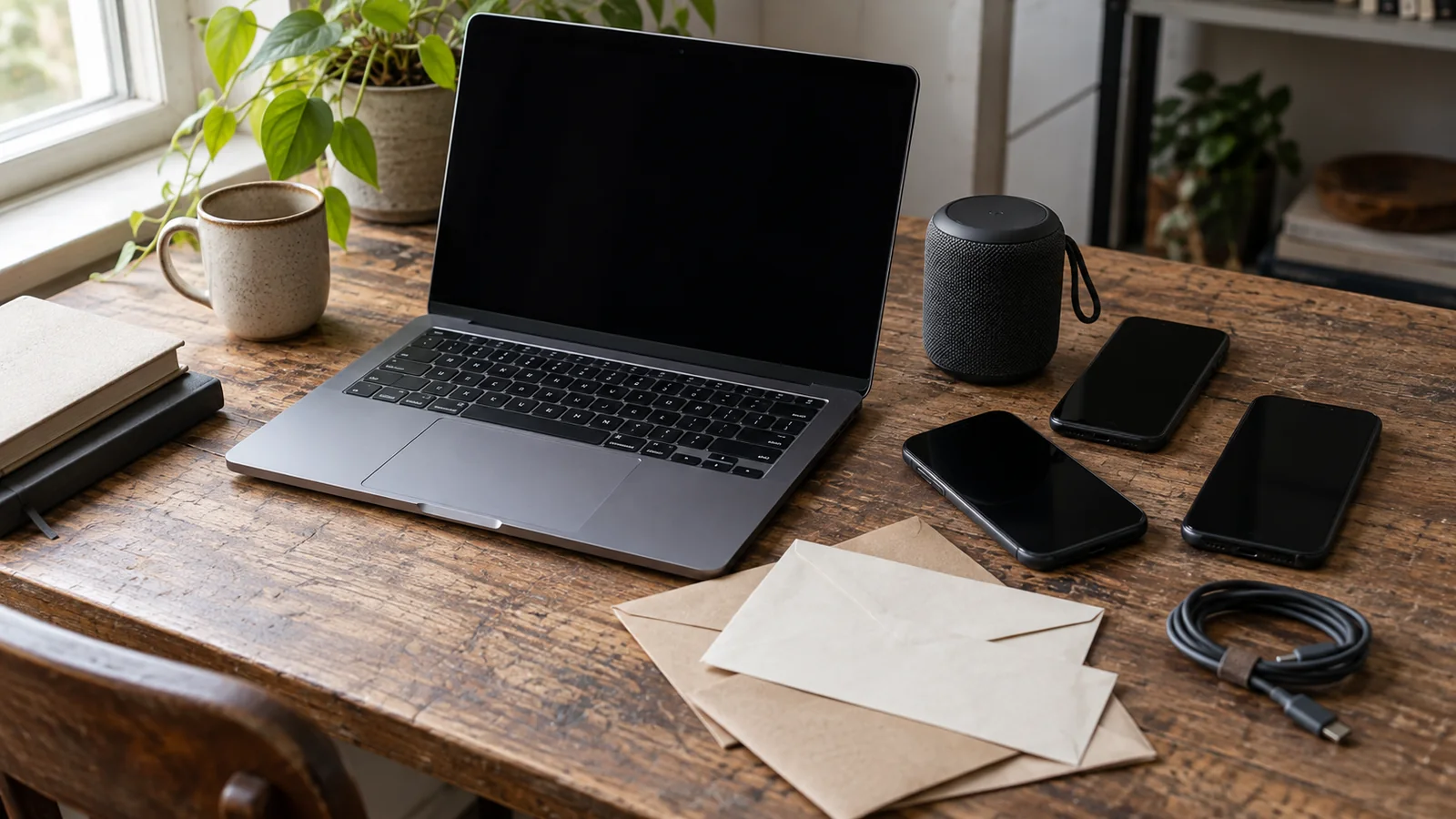
A mobile edit is not automatically a desktop project. The timeline may transfer, while the original media, fonts, music, effects, color interpretation, captions or licenses do not. Treat the move as a handoff with a source of truth, a reconciliation list and a verification export—not as a promise that two apps will render the same result.
This guide is editor-neutral. Mobile and desktop products change names, file formats and supported features. Use the current documentation for the actual pair of applications and versions. The workflow below is designed to expose what transferred, what needs rebuilding and what remains unverified.
Define the handoff target
Write the destination before exporting: continue editing, finish sound, color-grade, create multiple aspect ratios, deliver a client master, or archive an editable project. Define the required frame size, frame rate, color space, audio sample rate, caption format, output codec and deadline. A social draft may need only a rendered reference; a client handoff may require a portable project and every licensed asset.
Make a handoff inventory:
- mobile project file or share package;
- original camera media and screen recordings;
- audio, music and sound effects;
- fonts, logos, overlays, LUTs and graphics;
- captions, transcripts and translations;
- rights evidence and restrictions;
- timeline notes, markers, version name and approval state.
Do not let the mobile app’s project name stand in for this inventory. A project can appear complete on a phone while relying on cloud assets, a subscription library or a local file that the desktop cannot access.
Preserve originals and make a reference export
Before moving anything, preserve the mobile version. Export a reference video at a reviewable quality and keep the project’s current still or screen capture of the timeline. Name it with project, version, date and device/app context. The reference is not the master; it is the visual and timing target for reconciliation.
Copy original media without re-encoding where possible. Keep camera filenames, extensions, creation metadata and folder relationships. If the mobile app has already resized, stabilized, reframed or converted a clip, save both the source and the processed version when rights and storage allow. Record which one the timeline actually uses.
Check for variable-frame-rate phone footage, HDR clips, slow motion, portrait orientation and screen recordings. These can be interpreted differently on desktop. Do not “fix” a mismatch by silently changing the timeline. Record the mobile interpretation, then choose and document the desktop interpretation.
Use the supported project path
Prefer the application’s documented handoff path over a generic file copy. Apple’s current documentation, checked 2026-09-15, says an iMovie project from iPhone or iPad can be shared as a project through AirDrop, Files or iCloud Drive and imported into Final Cut Pro; it also notes that unsupported template elements may be replaced. Adobe’s Premiere documentation describes collecting a project with its media assets or consolidating and transcoding to a common format. These are product-specific behaviors, not cross-product guarantees.
If the apps cannot exchange a project, choose the least destructive bridge:
- use an interchange format supported by both applications;
- transfer a rendered reference plus an edit decision list or shot list;
- rebuild the timeline from original media while using the reference as a guide;
- for a simple social edit, deliver the rendered master and preserve the mobile project as the editable source.
Do not expect an interchange file to preserve every title animation, mask, speed curve, adjustment layer, transition, plugin or caption style. Make a list of effects that are essential and test them in a short sample before migrating the whole project.
Build a portable package
Use a clean package with a top-level project folder, for example:
ProjectName/
  01_Project/
  02_Originals/
  03_Audio/
  04_Graphics_Fonts_LUTs/
  05_Captions/
  06_Exports_Reference/
  07_Rights_Notes/
  08_Proxy_or_Transcodes/
The exact names do not matter; consistency does. Include a README with the mobile app and version, desktop app and version, sequence settings, source locations, missing items, fonts, effects, music terms, and the last approved reference.
A portable asset has three parts: the file, the project’s reference to it, and permission to use it. Copying a music file without its license does not make the use portable. A font file may be technically copyable but restricted by its license. A cloud template may render on the phone but be unavailable on the desktop account. Record the owner, permitted use, territory, term and attribution requirement for commercial work.
Relink deliberately
Open the desktop project on a copy, not the only mobile or cloud version. If clips are offline, use the NLE’s relink or locate-media command and point it to one controlled folder at a time. Match by path, filename, timecode, duration, frame rate and audio channels where the application supports those fields. Never accept a visually similar clip without checking the first frame, last frame and sync.
Blackmagic’s official Resolve material, checked 2026-09-15, describes changing a source folder to relink moved media and exporting a project archive that contains the project and media for restoration on another computer. Apple’s Final Cut documentation similarly explains that relinked media must match important attributes such as type and frame rate. These examples show why relinking is a verification task, not a universal browse-and-click operation.
After relinking, inspect the timeline for offline clips, duplicate matches, shifted in-points, missing audio, changed speed effects and orientation. Save a log of anything that did not reconcile. If many clips fail, stop and fix the folder structure or naming rule before manually locating each one.
Reconcile fonts, effects and captions
Make a three-column list: transferred, replaced, and still unverified. For fonts, install only the licensed version and check line breaks, kerning, safe areas and language characters. For graphics, confirm dimensions, alpha, color profile and whether a linked file was embedded or merely referenced.
For effects and transitions, compare the mobile reference at the exact moment they occur. Rebuild unsupported effects with native desktop controls only after noting the intended result. A desktop substitute can change timing, edge softness, motion blur, grain, stabilization, speed ramps or color. If the difference is material, disclose it or ask for approval rather than hiding it in a new version.
Captions need their own check. Confirm whether the mobile export contained burned-in text, a sidecar file, editable title layers or a cloud transcript. Verify language, timing, line length, punctuation, safe position and accessibility requirements. Do not assume that a visual title layer is a caption track.
Reconcile color and audio
Color can change when a phone HDR clip, a desktop color-managed timeline and an SDR delivery path meet. Record whether the mobile app applied an automatic look, HDR-to-SDR conversion, filter or export transform. On desktop, check input color tags, timeline color space, monitoring settings and output transform. Review skin tones, whites, shadows and saturated graphics on the actual delivery screen.
Audio can change with sample rate, channel mapping, loudness normalization, missing effects or a different interpretation of ducking. Check dialogue, music, effects and silence at the start, middle and end. If the mobile app used an automatic voice enhancement or “lower other clips” feature, identify its desktop equivalent and listen for pumping, clipping or lost ambience. Export a short audio test before a full render.
Verify against the mobile reference
Do not compare only the final frame. Use a checklist of anchor points: first frame, first cut, every title, every speed change, every music entrance, every caption block, the final transition and the end frame. For a longer edit, use timecode notes or a marker list.
Export a desktop comparison with the same frame rate and intended aspect ratio as the reference where possible. Watch it on a phone and desktop, muted and with sound. Check crop, stabilization, motion cadence, text, color, dialogue sync and asset substitutions. If the desktop output is the new master, create a separate approval reference and keep the mobile reference unchanged.
Troubleshoot the handoff
The project opens but media is offline. Confirm the package includes original files, the drive is mounted, paths are accessible and the desktop app supports the codec. Relink by controlled folder and verify representative clips.
The timeline is shorter or longer. Check frame rate, variable-frame-rate interpretation, speed effects and audio sample rate. Do not stretch clips until the cause is known.
Titles or captions move. Check fonts, canvas dimensions, text-safe settings, language characters and whether the mobile title was replaced by a desktop substitute.
Color looks different. Compare HDR/SDR interpretation, input tags, LUTs, filters and output transform. Use the source and reference to decide, not memory.
Music or effects are missing. Check whether the mobile library asset was licensed for desktop export, client delivery and the intended territory and term. Replace it only after recording the change.
The export looks right but the project is not portable. Test opening the package on another desktop account or offline drive. A rendered file is a deliverable; it is not proof that the editable project can be recovered.
Release gate
Before calling the move complete, confirm:
- The destination, timeline settings and master format are written.
- Original media and the mobile reference are preserved.
- The supported project or interchange path was used and documented.
- All portable assets, fonts, effects, captions and licenses are accounted for.
- Relinking was checked by identity, timing, audio and representative frames.
- Color and audio were reconciled on the intended delivery path.
- The desktop export matches the approved reference or differences are approved.
- Another editor can locate the project, media, rights notes and recovery instructions.
If a gate fails, keep the mobile version intact and record the unresolved item. A good handoff does not pretend that two editors are identical. It makes the differences visible, preserves the source, and gives the desktop editor enough context to finish without guessing.
Sources and scope
- Apple Support — Import into Final Cut Pro for Mac from iMovie for iOS or iPadOS — mobile project sharing and import behavior; accessed 2026-09-15.
- Adobe Premiere — Transfer projects between computers — collecting project files and media or consolidating/transcoding; accessed 2026-09-15.
- Blackmagic Design — DaVinci Resolve media management and project archive — relinking and archive package concepts; accessed 2026-09-15.
- Microsoft Support — Exporting and saving a video in Clipchamp — project asset/export folder behavior and rendered output; accessed 2026-09-15.
These sources support the product-specific handoff and media-management statements. The package structure, rights reconciliation, color/audio checks and release gate are Angry Media editorial synthesis. This article is educational, not a guarantee that any mobile project will open unchanged on desktop; verify current app versions, codecs, licenses and destination requirements before deleting or replacing the source project. Source review completed 2026-09-15; scheduled publication 2026-11-07.
Comparison Matrix